> For the complete documentation index, see [llms.txt](https://help.mywayroute.com/llms.txt). Markdown versions of documentation pages are available by appending `.md` to page URLs; this page is available as [Markdown](https://help.mywayroute.com/v3/guides/managing-your-contacts-and-places.md).
# Managing your Contacts and Places
Add stops from your contacts and build a list of saved places
{% hint style="info" %}
**Using MyWay on Android?** This page describes the iOS app version 3. See [Version 2 of this page](https://help.mywayroute.com/guides/managing-your-contacts-and-places).
{% endhint %}
MyWay Route Planner has a lot of tools that can help you with often-visited places. That is especially valuable for businesses that go to the same places every now and then and want a simple and efficient way to repeat routes or build a new one in a few taps.
To help you build routes quicker, MyWay has two sources besides the address search: Contacts and Places. Both can be used to add stops to the route.
## Contacts
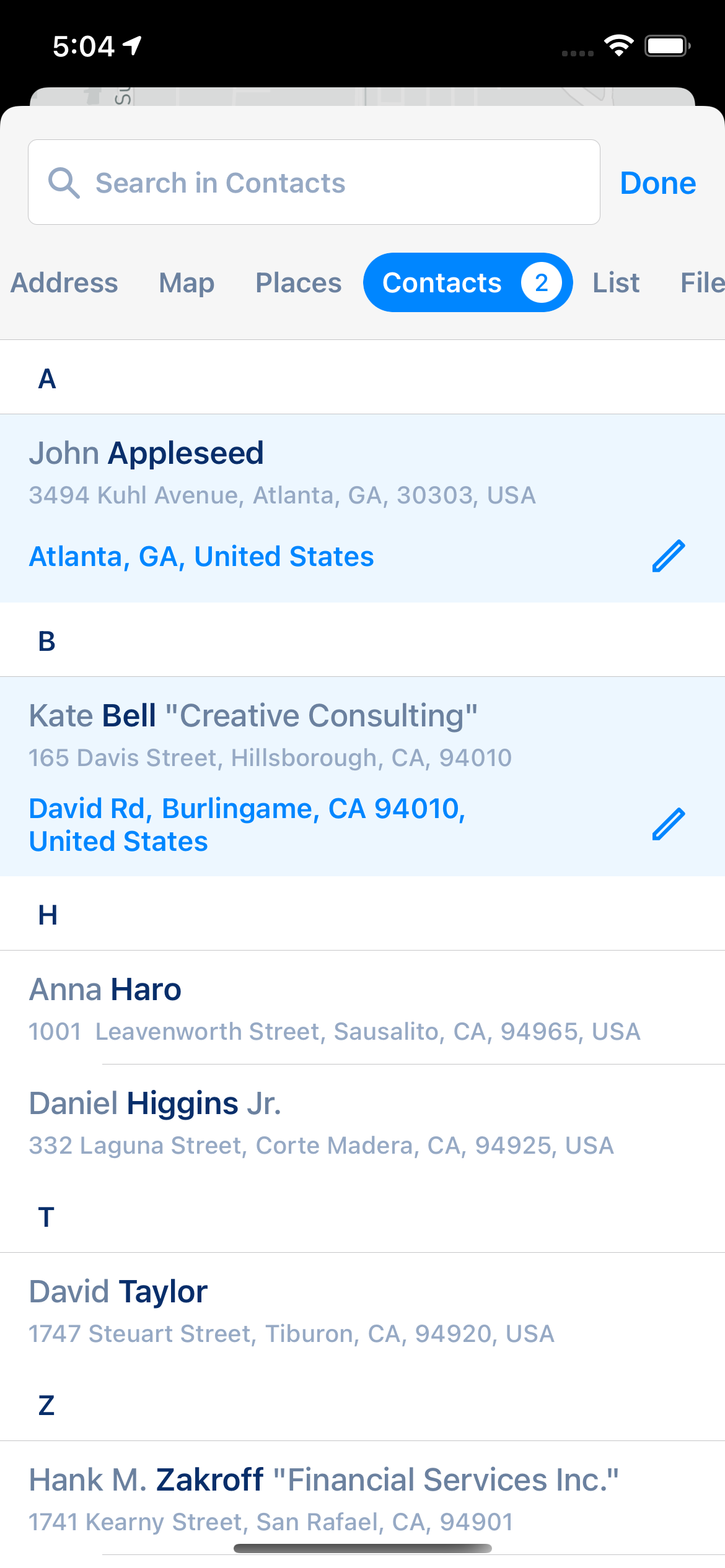
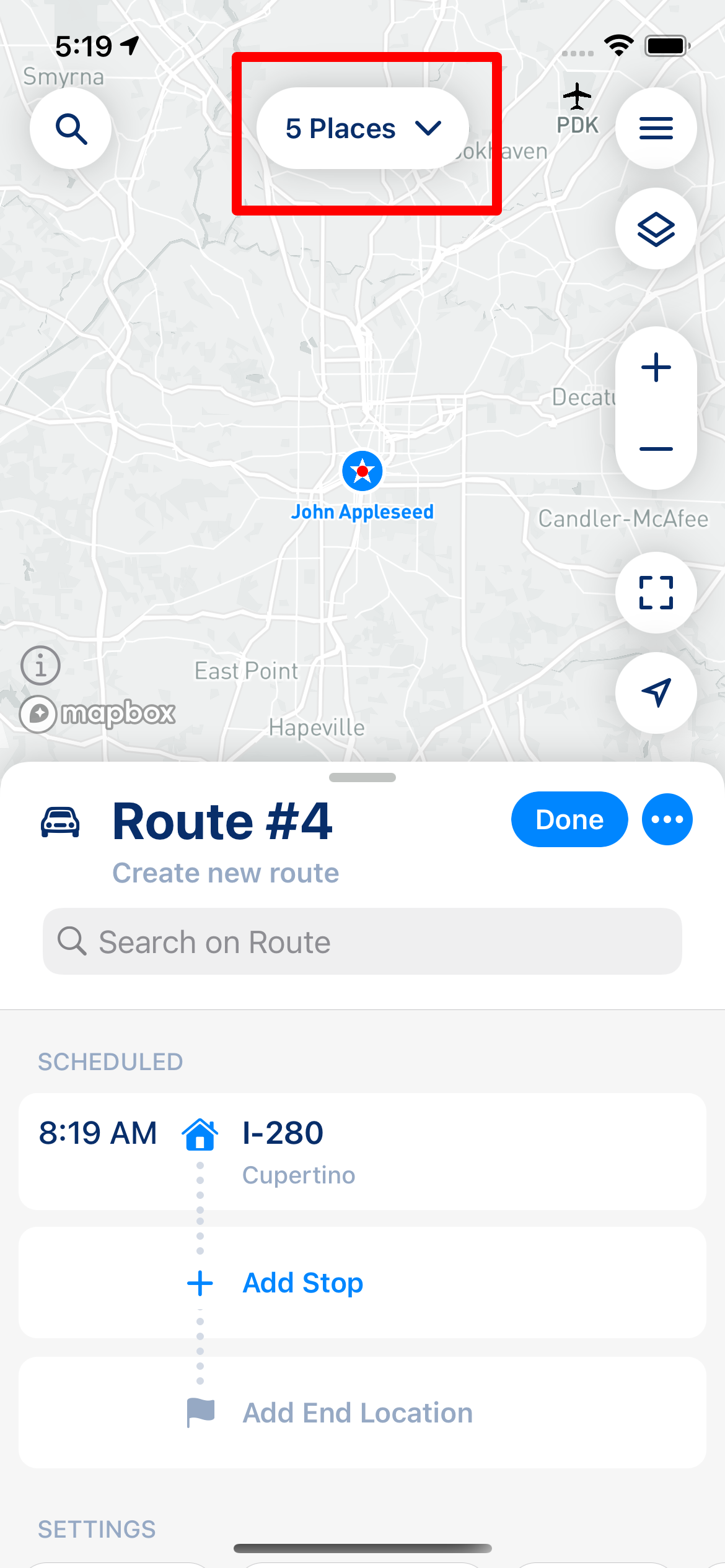
Contacts let you add addresses from your iPhone address book. If you give MyWay access to your contacts, it can add them to your route as stops together with the contact details (name, company, phone numbers, email). To open Contacts, tap "Add Stop" or the magnifier button in the top left corner of the map, and then tap the "Contacts" tile.
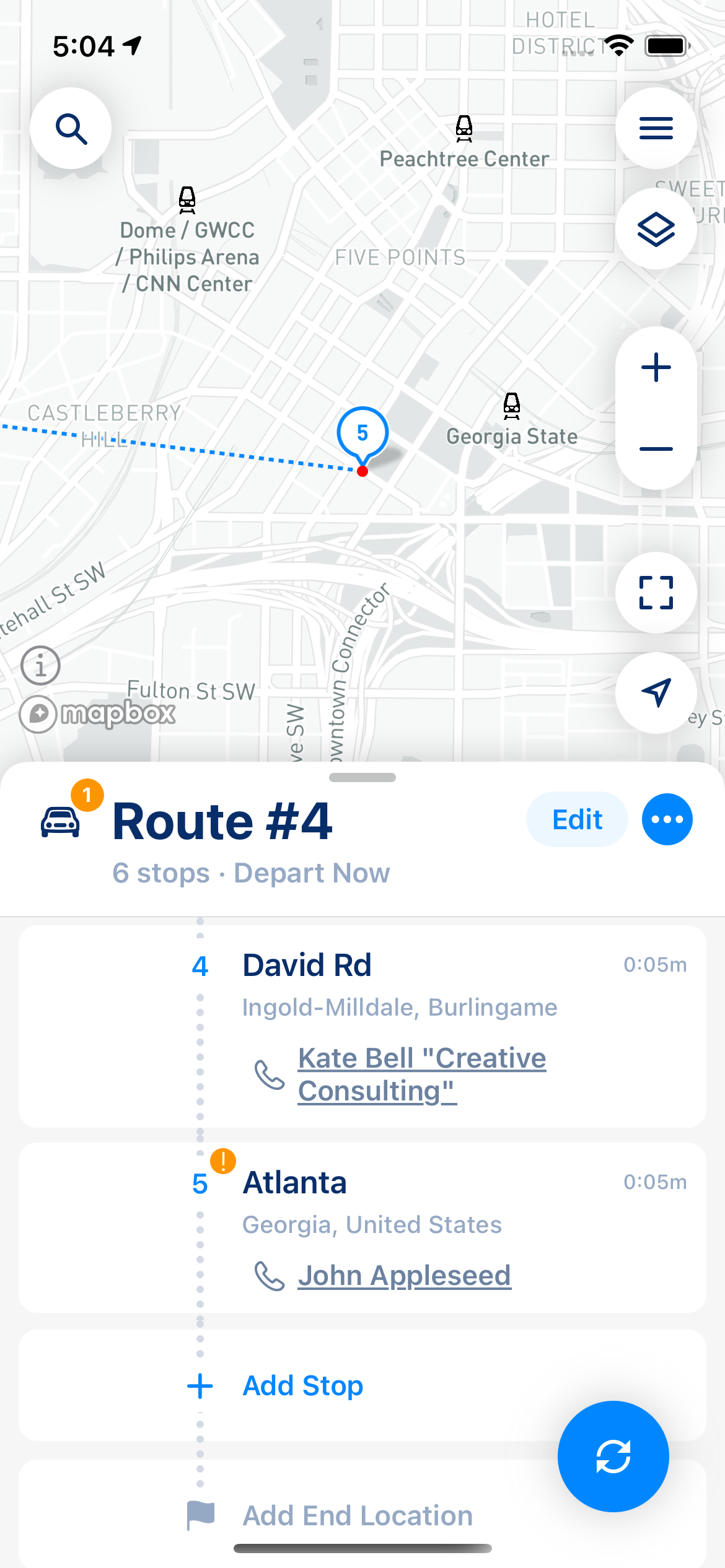
Select one or several contacts and tap "Add to Route". MyWay finds the address of each contact and adds them as stops. The contact details are saved in the stop's Contact section.
{% hint style="info" %}
If MyWay can't determine a contact's location, it asks you to set the address ("Set Address"). If you didn't give MyWay access to your contacts, tap "Open Settings" and allow access there. MyWay doesn't store your contacts on its servers.
{% endhint %}
## Places
Places work in a similar way, but there is much more in them than in Contacts. This feature is useful for sales, delivery drivers, and everyone who needs a list of favorite places with specific parameters and contact details, grouped by color, tags, etc.
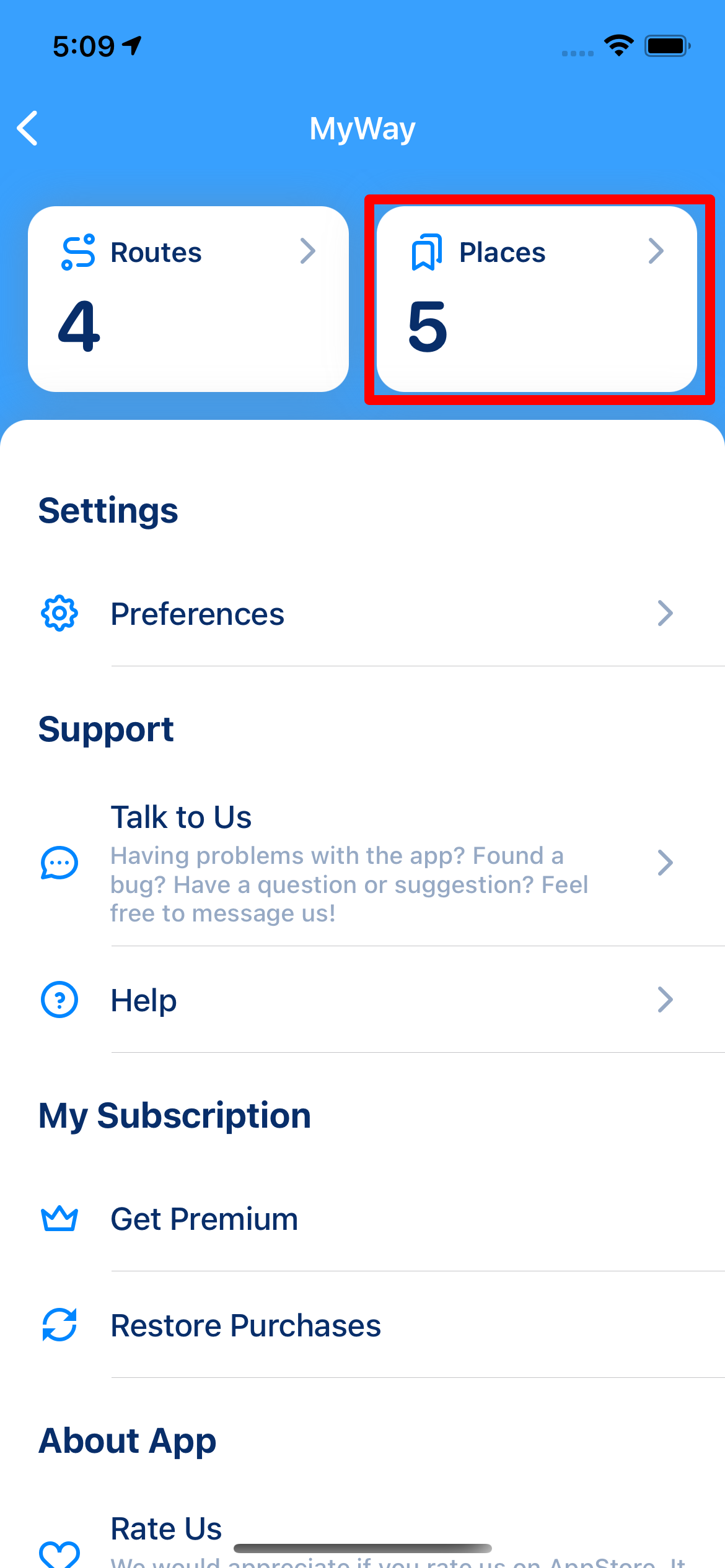
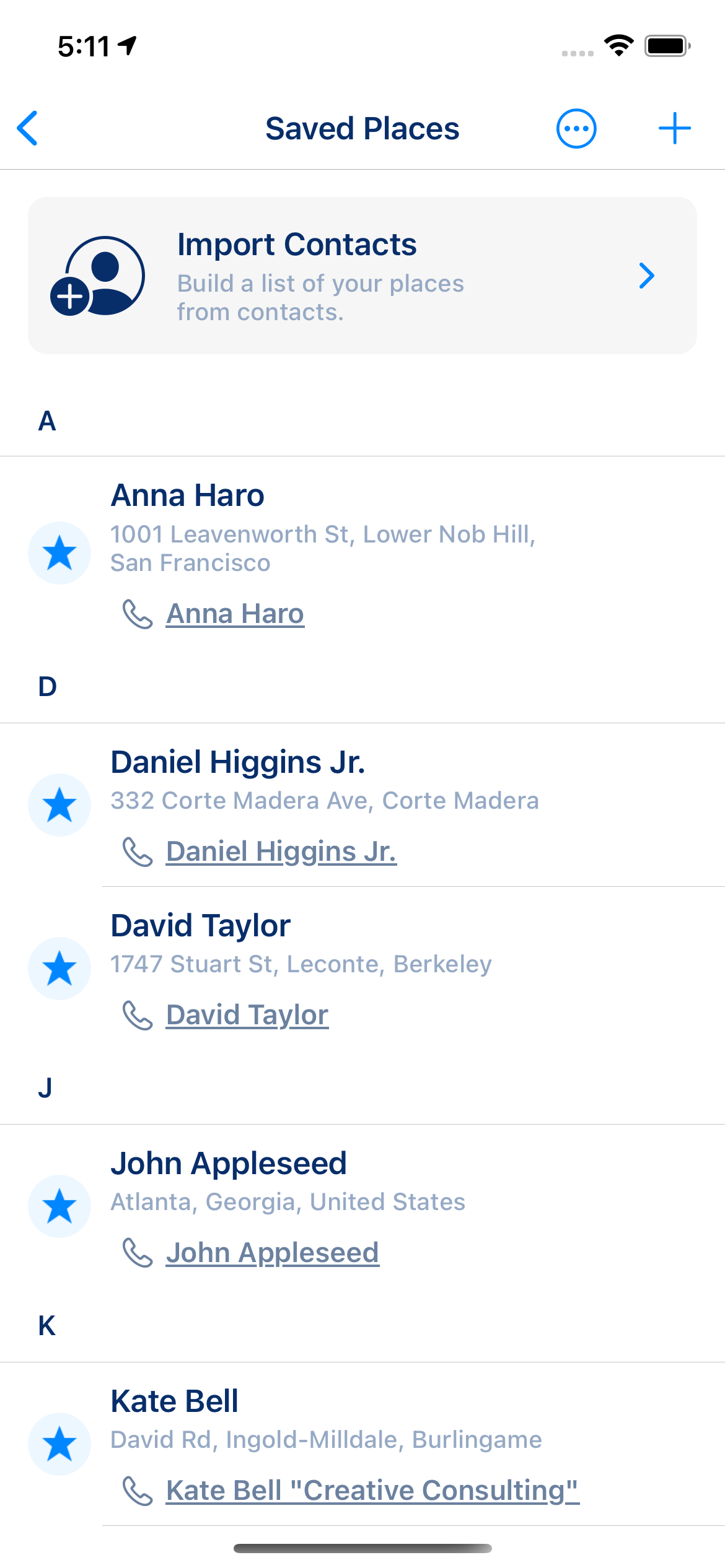
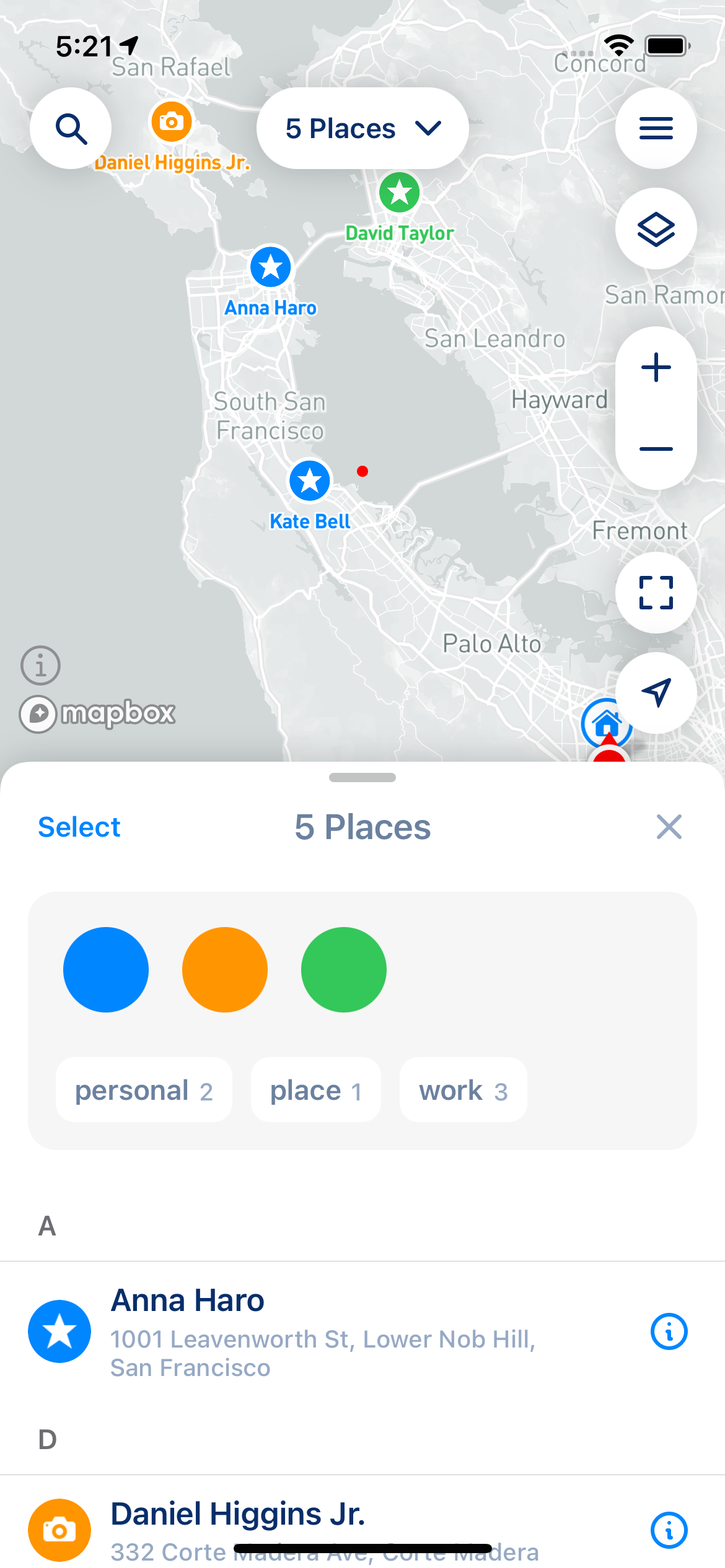
To use this feature, first build your list of places. Tap the menu button (three lines, top right corner of the map) and then the "Places" tile to open "Saved Places". There you can:
* create a new place: tap "+" (or "Add Place");
* import places from your address book: tap "Import from Contacts", select the contacts and tap "Add". MyWay finds the address of each contact and shows it under the contact name, so you can check it before adding. The contact details are saved in the place's Contact section.
Main Screen
Menu
Saved Places
A place has the same settings as a stop: name, color, icon, notes, tags, time at stop, contact details and time window. To change them, open the place and tap "Edit". When you add a place to a route, the stop gets these settings.
To find places quickly, use the search at the bottom of "Saved Places". The filter button shows places of certain colors and tags. In the "…" menu you can sort places by name, contact or address, and group them alphabetically, by color or by city.
### Add places to your route
There are several ways to add places to your route:
* **From the "Add Stop" screen**: tap the "Places" tile, select one or several places and tap "Add to Route". Pretty similar to other sources like Contacts.
* **From "Saved Places"**: open a place, tap "…" and choose "Add to Route".
* **Several places at once**: in "Saved Places", tap "…" > "Select" and select the places (for example, filter by the "work" tag first and tap "Select All"). Then tap "…" at the bottom and choose your current route under "Add to Current Route".
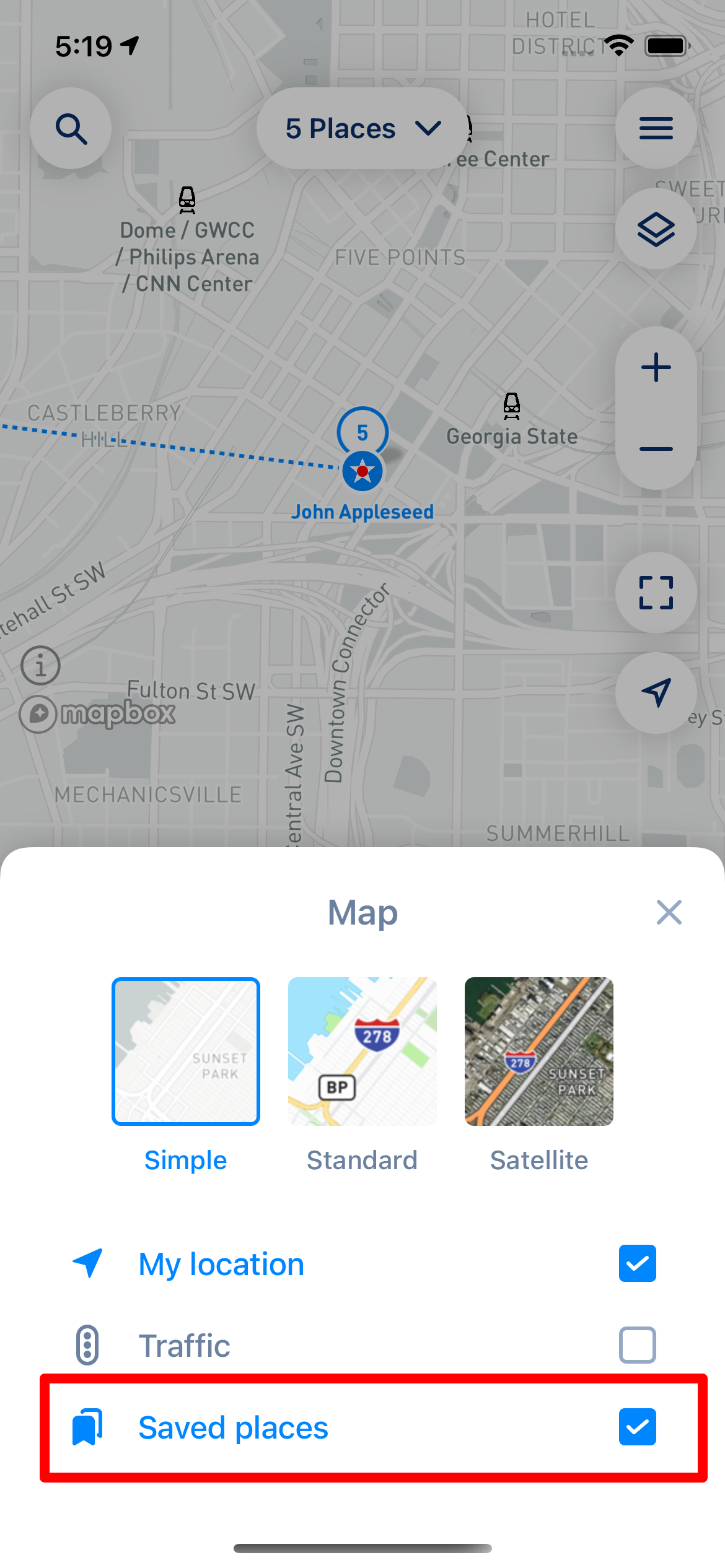
To see your places on the map, tap the layers button (top right, below the menu button) and turn on "Saved Places". Tap a place on the map to open it.
### Stops and places
A stop can also become a saved place: open the stop and choose "Add to Saved Places". A stop added from a place stays linked to it:
* "Update Saved Place" saves the stop's changes to the place;
* "Sync from Saved Place" copies the place's current settings to the stop;
* "Unlink Saved Place" removes the link.
You also can add stops individually, from the map, or in any other way you want to.
.png?alt=media)