> For the complete documentation index, see [llms.txt](https://help.mywayroute.com/llms.txt). Markdown versions of documentation pages are available by appending `.md` to page URLs; this page is available as [Markdown](https://help.mywayroute.com/v3/guides/import-from-file-and-multi-line-import.md).

# Import from file and multi-line import

{% hint style="info" %}
**Using MyWay on Android?** This page describes the iOS app version 3. See [Version 2 of this page](https://help.mywayroute.com/guides/import-from-file-and-multi-line-import).
{% endhint %}

MyWay Route Planner allows you to save time and import many stops at once: from a list of addresses (multi-line import), from files (.XLSX, .CSV), from a web link to a file, and from [other apps](#import-a-file-from-another-app).

<figure><img src="https://767845864-files.gitbook.io/~/files/v0/b/gitbook-x-prod.appspot.com/o/spaces%2F1McHbbCe36hw1kDZIHBs%2Fuploads%2Fgit-blob-39e3611cc18a5deb5271f3dca93282c7dad941e6%2FB8239E66-ACD9-4D1E-8F34-FDEF6872F09D%20(1).png?alt=media" alt="" width="188"><figcaption><p>Two ways to add stops to the route</p></figcaption></figure>

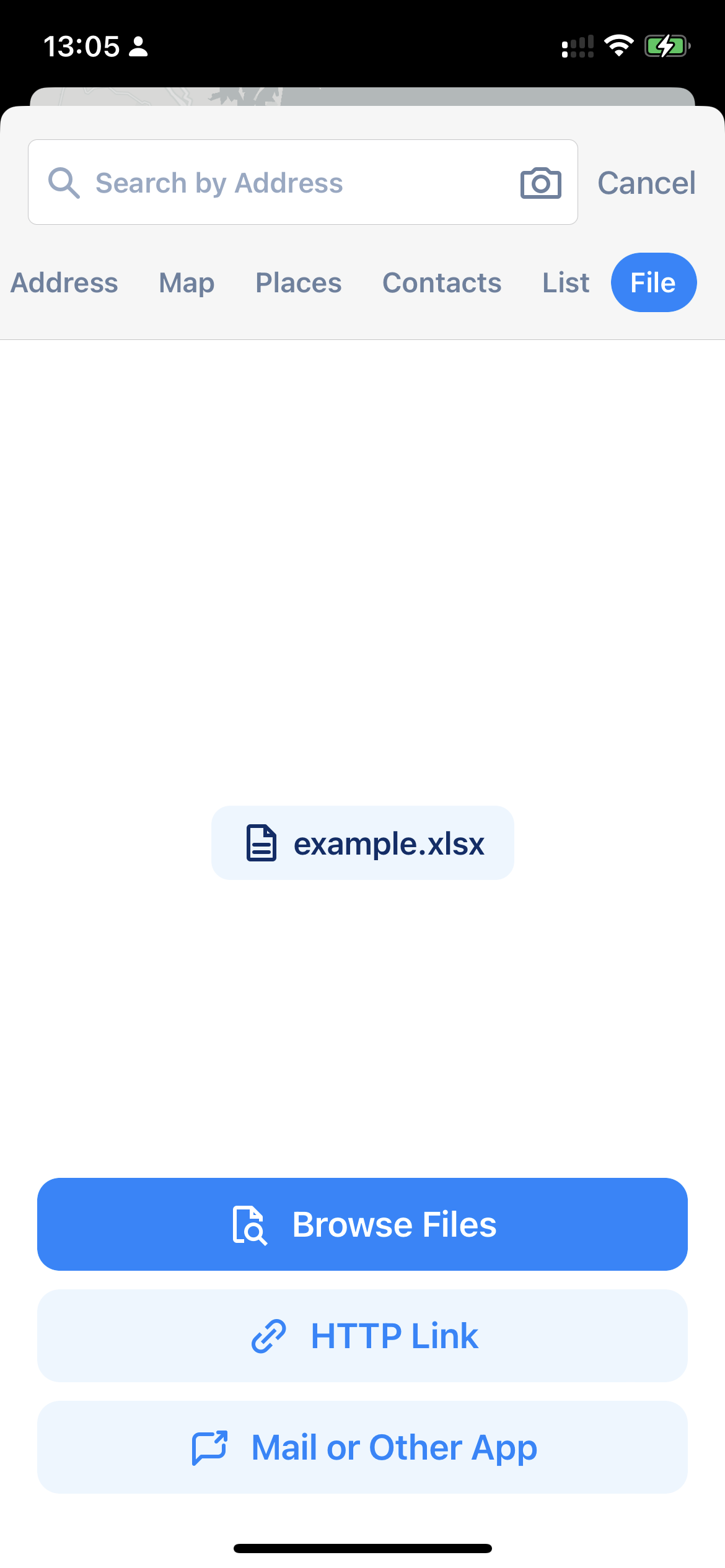
To start, tap "Add Stop" (or the magnifier button in the top left corner of the map) and then tap the "List" tile for multi-line import or the "Import" tile to import from a file. If you import from a file, please make sure you use the correct format (an example can be found [here](#import-from-file-file-example)). Also, please allow some time for the app to process your file: it can take a few minutes, as MyWay recognizes all addresses and matches them to the address database.

<div><figure><img src="https://767845864-files.gitbook.io/~/files/v0/b/gitbook-x-prod.appspot.com/o/spaces%2F1McHbbCe36hw1kDZIHBs%2Fuploads%2Fgit-blob-05c1b053a8ba13373f1b00827287fc57542c31b6%2FD789445A-AA47-4B3D-A2A6-63D72584651A.PNG?alt=media" alt="" width="188"><figcaption><p>Multi-Line Import</p></figcaption></figure> <figure><img src="https://767845864-files.gitbook.io/~/files/v0/b/gitbook-x-prod.appspot.com/o/spaces%2F1McHbbCe36hw1kDZIHBs%2Fuploads%2Fgit-blob-974fb3cd2b5d6b48729e40ae1dd58323fc08119a%2F74FCE7F4-6360-4635-93A7-81CB111F9B0E.PNG?alt=media" alt="" width="188"><figcaption><p>Import from file</p></figcaption></figure></div>

### Multiline Import

Tap "List" to open "Multi Search". Type or paste up to 30 addresses, one address per line, and tap "Search". MyWay tries to recognize each address. Select the addresses you need (or tap "Select All") and tap "Add to Route" to add them as stops. Lines MyWay couldn't recognize can't be selected: check the address and try again, or add that stop with the regular search.

### Import from File

Tap "Import" and then "Select File" to choose an .XLSX or .CSV file (up to 5 MB) on your iPhone. You can also tap "Web Link" and paste a link to an .XLSX or .CSV file on the internet.

Please download the file example ([example.xlsx](#import-from-file-file-example)) to see how the import file should look. The order of columns is not important: MyWay recognizes the columns by their titles and validates the data. If you need guidance or something is not going as expected, please check the file example to see the data formats we use.

After MyWay processes the file, it shows the recognized stops with their details (tracking ID, time window, time at stop, contact, notes). Rows MyWay couldn't find on the map are marked "Geocode unmatched" and can't be added. Tap "Add to Route" to add the selected stops.

{% hint style="info" %}
Before you pick a file, you have to send it to your phone either by email, a messenger of your choice, or AirDrop from your computer, or save it to the Files app.

Also, you can [open a file from another app](#import-a-file-from-another-app) when you have a file on your phone.
{% endhint %}

{% hint style="warning" %}
If the app recognizes addresses wrong, suggesting another state or country, please follow the advice from [this article](/v3/i-cant-find-an-address.md#if-the-app-recognizes-addresses-wrong-suggest-another-state-or-country). MyWay finds the addresses from the file with the geocoder you chose in Preferences.
{% endhint %}

### Import a file from another app

If the file is already on your iPhone (for example, in Mail, Files or a messenger), you can send it to MyWay directly:

1. Open the file in that app and tap the Share button.
2. Choose MyWay in the list of apps. If you don't see it, swipe the row of apps to the end, tap "More" and find MyWay there.
3. MyWay opens the Import screen with this file and starts processing it.

MyWay accepts .XLSX and .CSV files this way.

### Import from file - file Example

{% file src="/files/TFR8eCXQ2rG8XybDR2Dm" %}

You can use the file above if you need an example of a .XLSX file that can be imported into MyWay Route Planner.

{% hint style="info" %}
The order of columns does not matter, but the column titles and the format of the data do:

* Use English column titles, like in the example file. Column names for addresses can be "address", "Full Address", "FullAddress", etc., but the content should be an address that geocoding services can recognize.
* Write time at stop as hours, minutes and seconds (00:10:00) or with units (10m, 1h30m). A plain number like 10 is read as seconds.
* Write times as 09:00, 15:00 or 3:00 PM.
* MyWay reads only the first sheet of an .XLSX file.

Keep the column names exactly (if you can) as in the example file to minimize processing issues.
{% endhint %}

<table data-full-width="false"><thead><tr><th>order number</th><th>name</th><th>address</th><th>latitude</th><th>longitude</th><th>duration</th><th>start time</th><th>end time</th><th>phone</th><th>contact</th><th>notes</th><th>color</th></tr></thead><tbody><tr><td>1020</td><td>Central Park</td><td>830 5th Ave, Central Park, New York</td><td></td><td></td><td>00:10:00</td><td>10:00 AM</td><td>15:00 PM</td><td>1234567890</td><td>John Dow</td><td></td><td></td></tr><tr><td>1022</td><td></td><td>350 5th Ave, Koreatown, New York</td><td></td><td></td><td>00:10:00</td><td></td><td>19:00 PM</td><td></td><td></td><td>Some notes</td><td></td></tr><tr><td>1023</td><td></td><td></td><td>40.6893</td><td>-74.0445</td><td></td><td></td><td></td><td></td><td></td><td></td><td></td></tr><tr><td>1024</td><td>Apple Store</td><td>103 Prince St, Soho, New York</td><td></td><td></td><td>00:25:00</td><td></td><td></td><td></td><td></td><td></td><td>red</td></tr></tbody></table>

**We recommend using our example file and building your files based on it to reduce possible errors.** Copy of the file is available below:

{% file src="/files/TFR8eCXQ2rG8XybDR2Dm" %}