> For the complete documentation index, see [llms.txt](https://help.mywayroute.com/llms.txt). Markdown versions of documentation pages are available by appending `.md` to page URLs; this page is available as [Markdown](https://help.mywayroute.com/v3/faq/the-route-myway-produced-doesnt-look-correct.md).
# The route MyWay produced doesn't look correct?
Learn why routes might not look optimal and what settings affect optimization quality.
{% hint style="info" %}
**Using MyWay on Android?** This page describes the iOS app version 3. See [Version 2 of this page](https://help.mywayroute.com/faq/the-route-myway-produced-doesnt-look-correct).
{% endhint %}
## How optimization works
MyWay uses data from Apple, ArcGIS, HERE, Mapbox and OpenStreetMap to calculate the most efficient route by simulating thousands of combinations. However, the result might not always match your expectations.
The optimization algorithms consider factors like stop priorities, time windows, vehicle capacity, road conditions, traffic, tolls, u-turns, roadside preferences, left turns, weather, and more. [Some of these settings can be adjusted to suit your needs](#settings-that-affect-route-optimization), while others are fixed or influenced by road layout and limits. Below are common issues and explanations for why they occur.
## ETAs seem incorrect
ETAs may differ from actual arrival times for a few reasons: incorrect service times (the most common one, usually it's too short or too long), changing traffic, or the navigation app sending you on a different route. You can update your route in MyWay to recalculate ETAs, reflecting the latest weather, traffic, and stop order changes. We recommend [updating your route](/v3/guides/how-to-use-myway-route-planner.md#update-and-actualize-route) whenever it's modified to keep the ETAs accurate.
## Why does my route not look "optimal"?
If the route seems inefficient, it might be due to settings not aligning with your preferences. For example, if you turn off U-turns, the app will avoid them even if they would make the route faster. [Adjusting settings](#settings-that-affect-route-optimization) to match your real-world preferences can lead to better results.
### Why do I return to previously visited areas?
The most efficient route often resembles a clover shape, meaning you may revisit areas you already visited. While it might seem counterintuitive, shortcuts like crossing streets or avoiding U-turns usually take more time, add risks, and reduce convenience. The clover shape results from settings like [Optimization Mode, Allow U-turns on Waypoints, and Side of Road (set to Any Side by default)](#settings-that-affect-route-optimization). Adjusting these can improve the route while minimizing risks and ensuring compliance with traffic rules.
### Why does a non-optimized (my own order) route seem faster?
A non-optimized route ignores time windows and constraints, which can make it seem faster. However, this greatly increases the chances of missed stops or deliveries, leading to a higher rate of unsuccessful visits. MyWay will show all possible issues it might catch on the optimization screen.
## Road Settings that affect route optimization
You can find these settings in two places: under "Route Settings" below the stop list while you plan a route (Vehicle, Side of Road, Optimization Mode, Road Restrictions), and in the menu (three lines, top right corner of the map) > Preferences > "Directions" (Allow U-turns on Waypoints, Snap to Road).
### **Vehicle Type**
[Vehicle Type](/v3/guides/understand-vehicle-settings.md) is a very important setting that determines what is available and what is not. If you drive a "car," it's pretty straightforward and it's set by default. However, if you are a van or truck driver, the optimization algorithm will try to avoid small roads and penalize intersections. The algorithm also knows which areas are not allowed for truck drivers (like tunnels, low bridges, or restricted roads) and will avoid that, so your route will look longer but will be suitable for your specific vehicle type. Also, pick "truck" as a vehicle type only when you drive a big truck, not a small one. For the van option, stick to "van" or even a "car." If, after changing your vehicle type, you see some issues, please check [this article](/v3/faq/why-do-some-of-my-stops-have-issues-path-not-found-or-unexpected-error.md).
### **Optimization Mode**
[Optimization Mode](/v3/guides/how-to-use-myway-route-planner.md#optimization-mode) is one of the most fundamental settings that affect route optimization. There are two options available: "Optimize for Time" (more efficient) and "Optimize for Distance".
Clearly, the “best route” means different things to different people. For most people, the best route would be the fastest one. For some, though, it may be the shortest path. And some may prefer a trip that uses highways or avoids tolls and tunnels. Besides, the fastest or shortest route may not always be the most efficient. For instance, the quickest route might have many left turns, and the shortest mileage route may drive through heavy traffic. In both these route options, your fuel consumption will go up significantly. Also, what if the fastest route is three minutes faster but several miles longer? Is it still an efficient one? What if the shortest path allows you to drive 5 miles less but makes you go through two tolls? Is it an efficient one? Pick the one you believe will serve you better or keep "Optimize for Time" by default.
### **Allow U-turns on Waypoints**
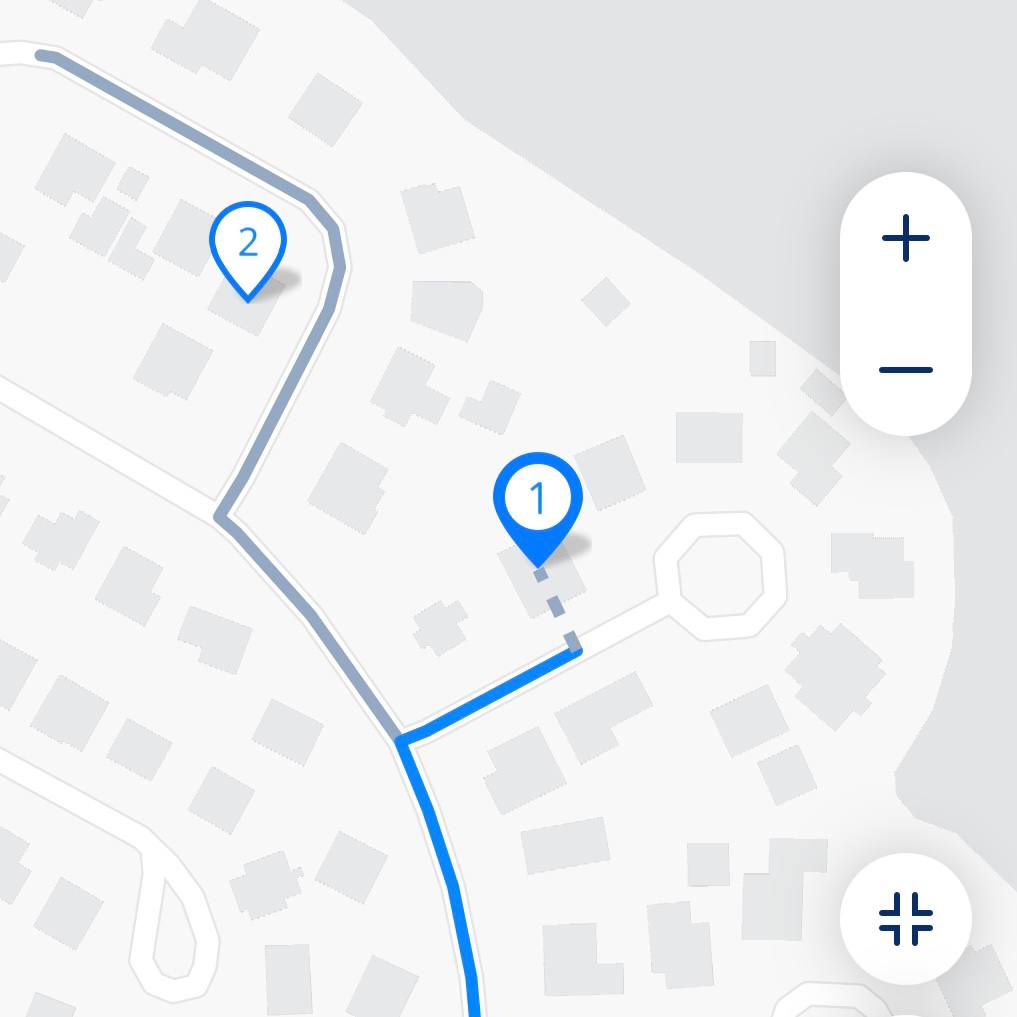
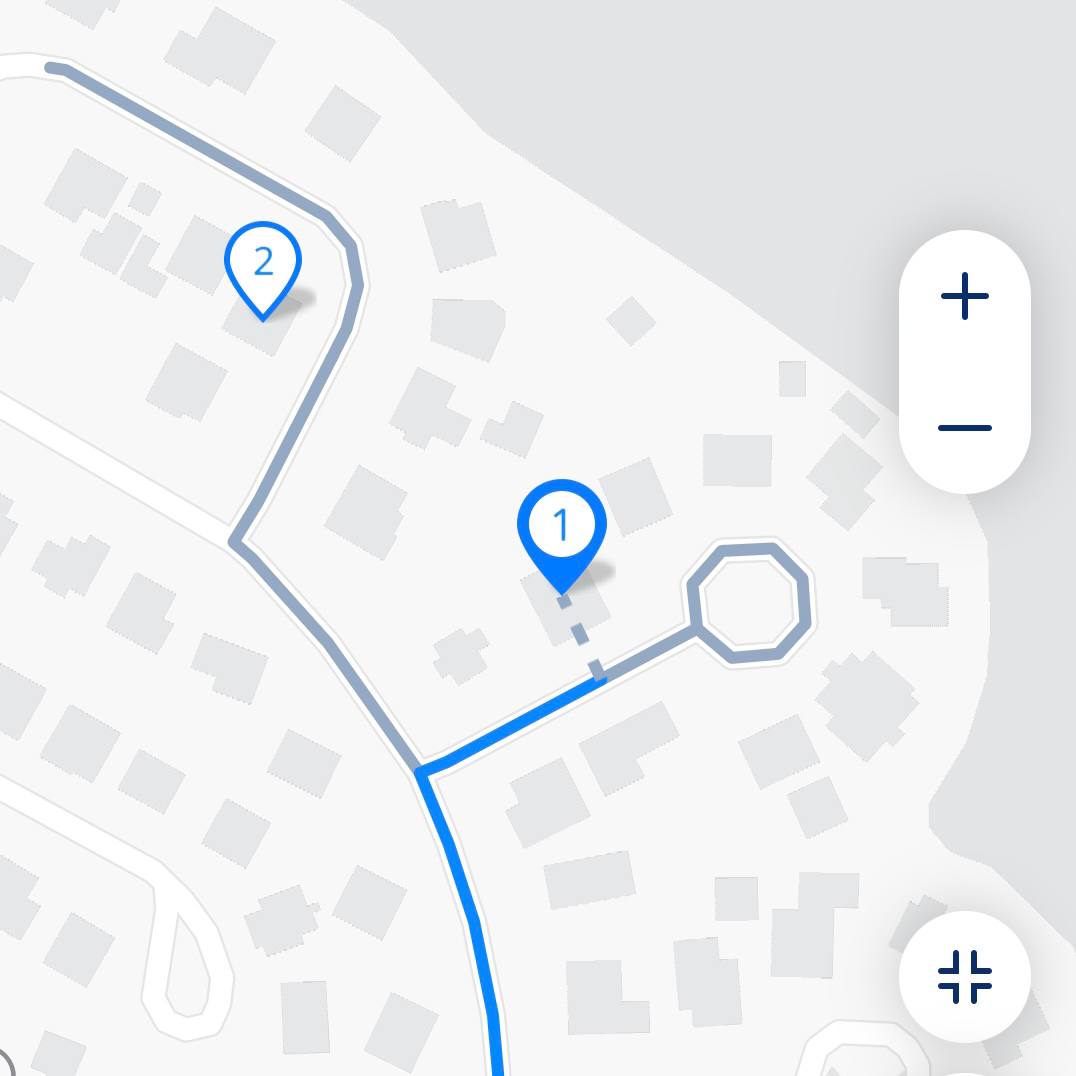
The app can build more efficient routes when "Allow U-turns on Waypoints" is on (Preferences > Directions; it's turned on by default). The downside of this is more U-turns, which in some cases are less convenient and less safe if you drive a bigger vehicle. Turning U-turns off can increase the route length. Below, you can see an example of how this setting affects route optimization. On the left option, the app will suggest making a u-turn and on the right one to go through a roundabout.
Allow U-turns turned ON
Allow U-turns turned OFF
### **Side of Road**
The "Side of Road" setting tells the app which side of the road you (as a driver) want to park on. If you choose "Any Side", the app builds the most optimal route, but sometimes you have to park on the other side from your stop and cross the road. If you choose "Same Side as Stop", you don't have to cross the road, but the route may be longer. "Across from Stop" means you park on the opposite side and cross the road on foot.
### **Snap to Road**
"Snap to Road" (Preferences > Directions, on by default) moves each stop to the nearest point on a main road, so the route and navigation avoid backyards and service roads. The point may sit a bit farther from the actual location. Turn it off if your stops are inside large areas (like campuses or industrial parks) and you need to drive closer to the entrance.
### **Road Restrictions**
[Road Restrictions](/v3/guides/how-to-use-myway-route-planner.md#road-restrictions) let you avoid highways, ferries, toll roads and unpaved roads. Avoiding them can make the route longer.
{% hint style="info" %}
Examples:
**If you need the most efficient (convenient) route,** please choose "Optimize for Time", turn off U-turns, and pick the side of road you want (or keep default settings). In this case, the route might look like a clover shape.
**If you need the best-looking (but not optimal) route,** please choose "Optimize for Distance", allow U-turns, and keep "Any Side".
{% endhint %}
## Stop Settings that affect route optimization
### Time at Stop (Service Time)
Time at stop greatly affects overall route time and can play a significant role when you build your route. [Please make sure you set the correct time at stop](/v3/faq/what-service-time-should-you-choose.md) when you plan your route.
### Time Windows
Time windows play a crucial role in route optimization. Each stop has a designated time window—an interval when deliveries or visits must occur. The app ensures that all stops are scheduled within their time windows, which can significantly influence the route order and timing.
If a stop has a strict time window, the app may prioritize it even if it's not in the most geographically efficient sequence. This can cause the route to take detours or adjust the timing of other stops to meet these constraints. The more [restrictive the time windows](/v3/guides/understanding-stop-settings.md#time-windows), the more they can impact the overall optimization, often at the expense of shorter distances or faster completion times. [Priority](/v3/guides/understanding-stop-settings.md#priority-asap-button) also affects optimization: "First" stops stay at the beginning of the route, "Last" stops at the end, and "High" stops are visited among the first.
## My route goes "forward/backward" direction from what I need.
Routes don't follow a "forward/backward" concept. Route has two states, it's either optimal or not. The app builds the most efficient path based on many parameters that we described above, but also has, start, and end locations. If the route seems "backward," from what you need try removing the end location to reduce this chance. Keep in mind, that app still optimizes the route and may not perfectly match your desired order.
Alternatively, you can manually reverse the route: tap "…" in the route header > More > "Reverse Stop Order". This flips the stop order (except priority stops) to better suit your needs.
## How to report bad optimization?
In MyWay Route Planner, tap the menu button (three lines, top right corner of the map) and then "Talk to Us". Write us a message, and we will try to fix optimization for you. Please also share a screenshot that highlights the issue and [share the route copy](/v3/guides/export-your-route-and-share-it-with-others.md#share-route-copy) with us, so we can easily see the problem on our side.
Also, when you complete a route, MyWay asks "How was your route?". Tap "Had Issues" and then "Send Feedback": the chat opens with your route attached, so we can see which route you mean.
The app can optimize full-loop routes and even routes without an endpoint. We work with thousands of drivers across the globe to make sure the optimization works as efficiently as possible.